
Below you will find a detailed explanation on how to place an order in our portal. There are a few extra steps when we represent you fiscally. You will not see this options while placing an order If we don't do this for you.
This article is almost identical to our other article 'Placing an order'.The only difference is ordering per batch!
Orders can be place at our portal the following way:
Log in on our customer portal with your credentials and push on the button create order/go to stock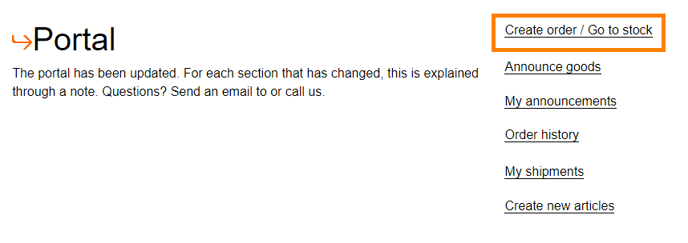
Search for the article you want to create an order for.
Ordering in general
If you want to order in general and it doesn't matter from which batch, you can fill in behind the articles how many pieces you want to order for each product and click on ‘Add to shopping cart’ 
Placing an order per batch
If you want to select a specific batch to order press the  .
.

This will show which batches there are and how many stock there is of the different batches, including batch code and number.

Select the amount you want to order and of which batch and click on ‘Add to shopping cart’
You will see the following where you need to select ‘Complete the order’ if you have selected everything. If you want to add more to the order you select ‘Continue shopping’. 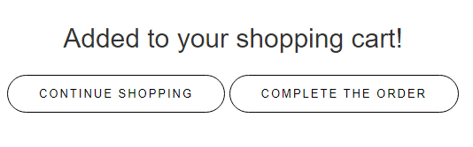
After you have completed the order, you will get an overview of all the items in your shopping cart and you can check if everything is correct. Here you can also check if you have selected the correct batch.
If so, then click on the button to go to step 2. 
you will get an extra step to fill in some VAL instructions. You can select some if this applies to you shipment, but this is not mandatory. you can continue to step 3.

It’s time to fill in the details of the receiving party at step 3. 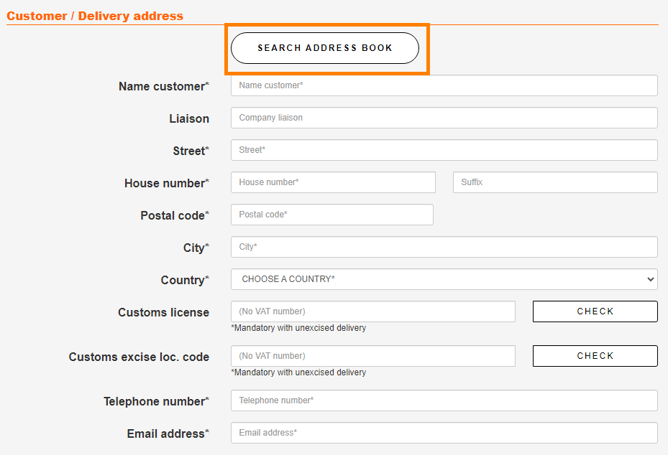
You can use the button ‘Search adress book’ if you will sent an order to a customer where you’ve already sent some orders to.
Otherwise you need to fill in the detals of the customer. (the fields with a * are mandatory)
You need to fill in the Customs license number and the customs excise loc code of the customer if you want to deliver under bond. 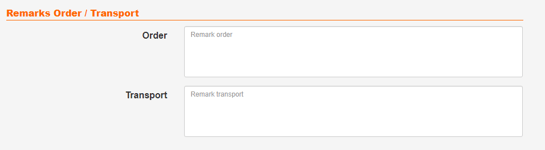
You can fill in some remarks specifically for the order (things like check for stickers or only use europallets)
You can also fill in some remarks specifically for transport (this will be shown on the packing list) 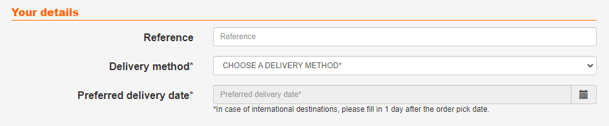
You can fill in your own reference number at reference.
You can select a delivery method at the dropdown menu.
If we need to arrange the delivery to customers outside The Netherlands please choose ‘Pallets internationaal via Amsterdam Freight Company’
If you arrange the delivery yourself or with a different carrier, please choose ‘Pick Up’
And fill in the preferred delivery date.
In case of an international destination, please select the day you want the order to be PICKED instead of the delivery date. You can request in the comments the day you want it to be delivered.
You need to upload an invoice here but only If we represent you fiscally.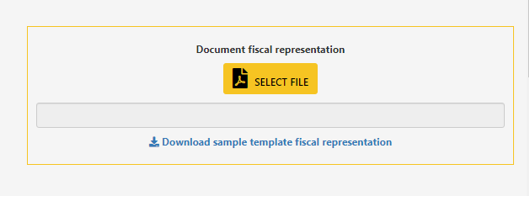
This invoice need to match our requirements. Without an invoice are we not able to process the order so this is very important!
Click on the below button when everything is filled in correct: 
We will check if the invoice matches our requirements and will process the order in our system. You will receive a preloading list once we have processed the order. You will find the unloading reference on this preloading list. This number is very important because without this number are we not going to give the pallets to the driver.
Your opinion is important to us! We consistently aim to offer you the most valuable information. Would you be so kind to answer the question below?