
The recommended way to add new articles is in two steps: first create a correct file with our Article Data Manager, then upload that file here in the customer portal.
Step 1 — Create your file with the Article Data Manager
Use our Article Data Manager app at articles.amsterdamwarehouse.com to prepare your article file. It cleans up your data, runs automatic checks, and exports a correctly formatted Excel file that's ready to upload here.
For more about the app, see Article Data Manager.
You can also fill in the empty Excel document manually instead of using the app. Either way, the upload steps in the customer portal are the same.
Step 2 — Upload your file in the customer portal
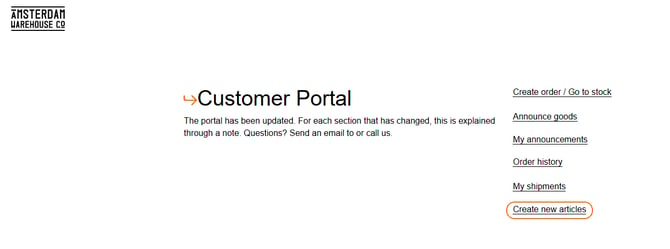
Go to our customer portal and click on the button "Create new articles":
Once your file is ready, exported from the Article Data Manager, it's time to upload it in the customer portal.
To upload the articles, select the file and press the "Upload" button.
The articles should be visible in the portal within several minutes after uploading the file. If they are not visible, there is an error in the file, and our customer service will send you an email letting you know what's causing it.
Good to know
- It is not necessary to create a new article for each announcement. An article only needs to be created if it is genuinely a new article.
- Uploaded articles only become visible in the portal through "announce goods".