Go to our customer portal and click on the button ‘Announce goods' 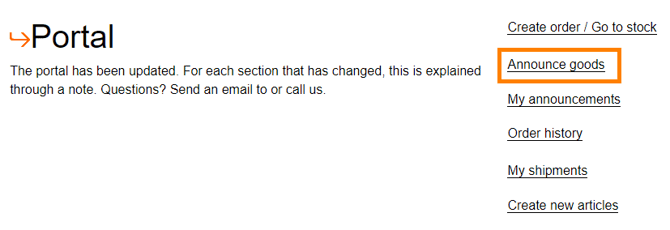
You will get an overview of all the articles you have created and can easily fill in how many we’re going to receive. We will explain the steps below: 
You can use the ’Search’ field to look for the item you’re going to announce. In the beginning it’s maybe not necessary, but when you have a lot of different products it is useful to use.
As you can see in the picture above you will see all different type of information such as litres and alcohol percentage.
🆕 Important: announcement must match the commercial invoice
Your inbound announcement must reflect the quantities and items shown on the commercial invoice.
If the announcement matches the invoice, no additional costs apply.
If the announcement does not match the invoice, AWC will apply:
• a minimum of 0.5 hour administrative correction time
• plus any additional corrections based on actual time spentThis policy helps prevent delays, stock discrepancies and incorrect inbound processing.
At ‘Quantity’ you need to fill in how many pieces we’re going to receive from the article (we have filled in 600 as an example) Please fill in the expiry date and batch code if you have this information.
Note: Check the unit. Now the announcements will be 600 bottles. If the unit would have been boxes, the announcement would have been 600 boxes.
If you click on the  in the last row, you can add another line of the same product. You can use this if we’re going to receive different batches of the same product.
With this button you can go to the overview of all your products.
If you are at the overview of all the products and want to go back to an overview of the products you have already selected for the announcement. Then you need to press this button: 
It’s necessary to upload the following file if we are your fiscal representative: 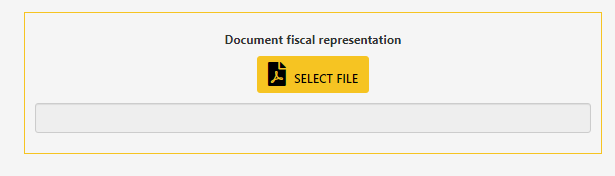
The file you need to upload is the purchase invoice of the goods. Please have a look HERE for an example invoice. The reason why we need this invoice will be further explained at the chapter ‘Fiscal representation’
If you have selected all the items and filled in all the quantities, then you need to go back to the top of the screen to this part: 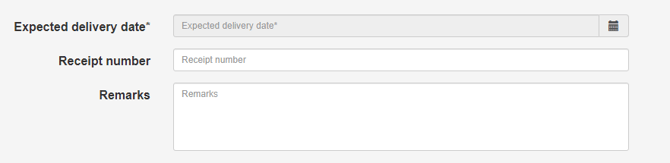
You can only select an expected delivery date by using the calendar icon, please note that later on you need to confirm the date when booking a timeslot, but this will be explained later on.
The receipt number can be used for your own reference number and this is also the number that will be shown on the invoice you will receive for processing the inbound.
At remarks you can leave some notes for our warehouse employees, this could be things like extra information regarding the inbound.
When everything is filled in you can go to Step 2 with the following button: 
Choose the VAL instructions that will apply to your inbound or continue to step 3: 
Once you have clicked on this button the announcement will be in our system. You will go to the next screen where you will get the unloading reference. The next screen will look like this: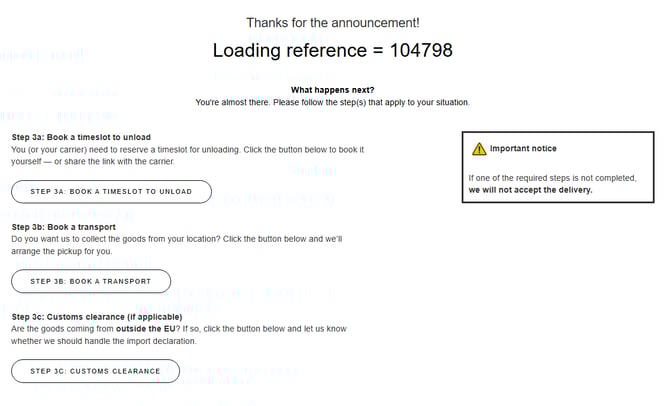
The unloading reference is very important because the driver needs to mention this number on arrival. Without this number we are not unloading the truck.
🆕 After your announcement: what needs to happen next
Once your announcement is complete, the system will show you the unloading reference number. This number is essential — the driver must mention it upon arrival.
🚛 No unloading reference = no unloading.
To make sure your delivery is accepted, you now need to complete the final logistics step(s). You’ll see these steps on screen:
Step 3A: Book a timeslot to unload (required)
You or your carrier must book a timeslot via the online planner.
If you don’t have the delivery date yet, you can forward the booking link to your carrier.
Step 3B: Book a transport (optional)
Do you want AWC to collect the goods for you? Then click this button to request the pickup.
Step 3C: Customs clearance (required if goods come from outside the EU)
If your goods are imported from outside the EU, let us know whether AWC should handle the import declaration. Click the button to submit the necessary info.
⚠️ At least one of step 3A or 3B is required. Step 3C is only required if the shipment comes from outside the EU.
Your opinion is important to us! We consistently aim to offer you the most valuable information. Would you be so kind to answer the question below?